Toolezs
How to Compress a PDF to 1 MB or Smaller
A portal rejected your PDF because it was too large. Here is how to bring it under 1 MB, which pass each method uses, and when the text stops being selectable.

Mark Steven • Content Writer
An upload form refuses your CV because it is 4 MB. An email bounces back because the attachment is too heavy. A 1 MB limit is one of the most common caps, and it is often much lower than the file you started with. Compressing a PDF to a target size is the fix, and knowing what each method does explains why the result sometimes keeps crisp, selectable text and sometimes does not.
Quick answer: open the Compress PDF tool, choose Target file size, pick the 1 MB preset or type your own limit, and press compress. The tool tries each method in turn and stops at the first result that fits. Nothing is uploaded — the file is rewritten in your browser.
Why aim for 1 MB?
Many email services allow attachments up to 25 MB, but portals, government forms and application systems are far stricter. A 1 MB ceiling is common because it keeps uploads quick on a slow connection. If a page does not tell you its limit, 1 MB is a safe target for a form or a CV, and 5 MB to 10 MB is usually fine for email.
How to compress a PDF to 1 MB or smaller
- Open the Compress PDF tool and add your PDF.
- Under Compression level, choose Target file size.
- Pick the 1 MB preset, or type your own value in KB or MB. The smallest value the tool accepts is 5 KB.
- Press compress. Each method is tried in order and the tool stops at the first result at or under your target.
- Read the result: it says which pass was used and whether the target was reached.
- Download the smaller file.
What each pass does to your file
- Re-save. The file is rewritten without redrawing a single page. Text stays selectable and sharp, and the saving comes from re-packing the file's objects and stripping data the PDF was carrying but does not need. It helps most on files that have been edited or passed through several tools.
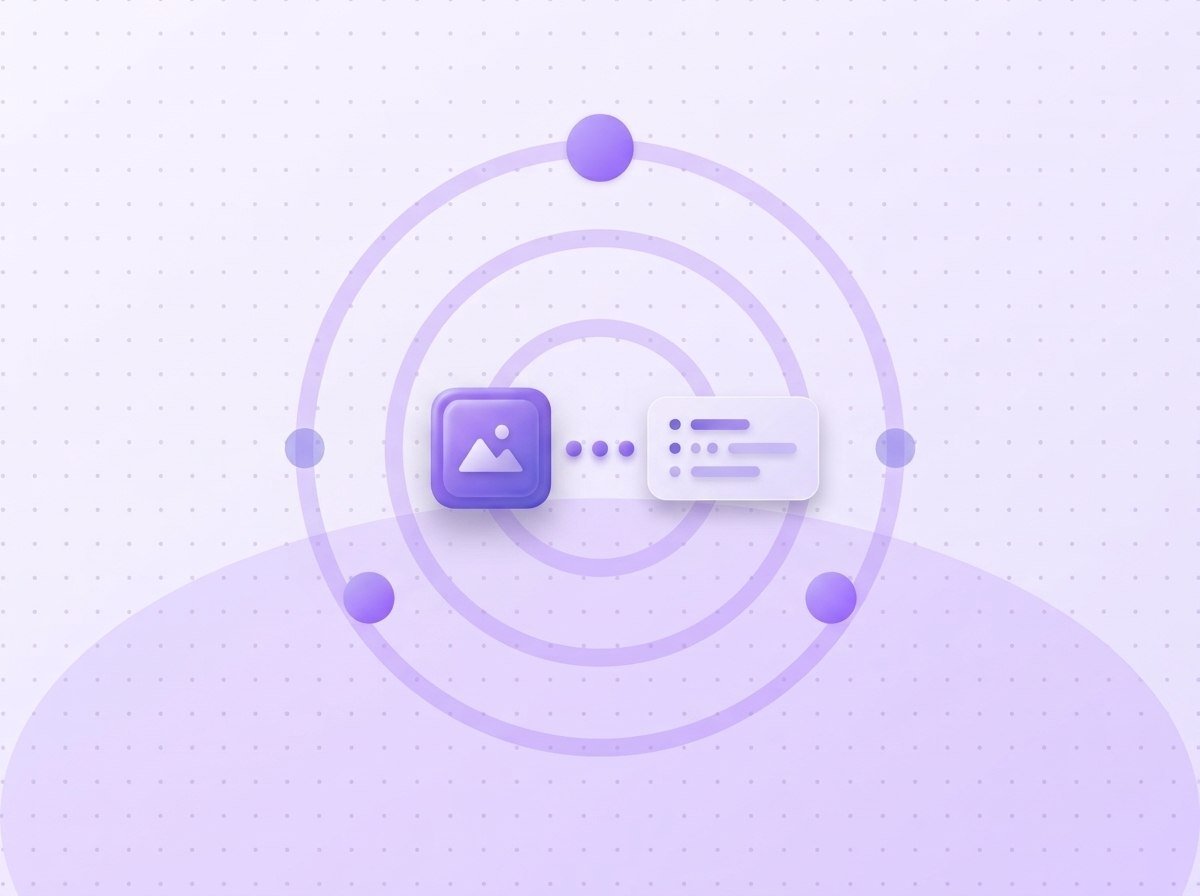
- Re-encode the photographs. The pictures stored inside are re-encoded at screen quality, while the pages and all of the text on them are left exactly as they were. This takes out much more on a document with images in it without changing how it reads.
- Draw the pages as images. This comes last. Every page is drawn as an image and the file is rebuilt from those pictures at progressively lower quality. It is the smallest result by far, and the reason is simple: the text is no longer text.
The tool works down that list and stops at the first pass that fits. A mostly-text CV often passes on the first try; a photo-heavy scan may need the last one.
Will the text still be selectable?
On the first two passes, yes — the words remain real text you can select, copy and search. Only the final redraw pass turns pages into images, which makes the text unselectable and unsearchable. The result screen tells you when that pass was used, so you are never left guessing. If the words have to stay searchable, choose a larger target so the tool can stop earlier.
Common problems
- "It still will not fit." Try a lower target, or remove pages you do not need first with Organize PDF.
- "The text became unselectable." The redraw pass was used. Re-run with a larger target so the tool can stop at an earlier pass.
- "The result is not smaller." If nothing beats your original, the original is offered back unchanged rather than a heavier file, so compare the sizes shown.
- "I started from a file that was already compressed." Two rounds of compression lose more for very little. Work from the original whenever you can.
Frequently asked questions
How do I compress a PDF to 1 MB or smaller?
Open the Compress PDF tool, choose Target file size, pick the 1 MB preset or type your own limit and press the button. The tool tries each method in turn and stops at the first result that fits.
What does the tool try, in order?
First it re-saves the file without redrawing a page, then it re-encodes the photographs stored inside, and only then does it draw the pages as images at progressively lower quality. It stops as soon as the file is within your target.
Will the text still be selectable after compressing?
On the first two passes, yes. Only the final redraw pass turns pages into pictures, which makes the text unselectable, and the result screen says when that pass was used.
What if the PDF cannot be made that small?
The result screen says the target was not reached and offers the smallest file the tool could make, so you can accept it or change the document.
Does the tool ever make my PDF bigger?
No. If nothing beats your original file, the original is offered back unchanged rather than a heavier file presented as a compression.
Are my PDF files uploaded or stored?
No. The file is read and rewritten in your browser, and nothing is uploaded or kept after you close the tab.
Compress your PDF now
Open the Compress PDF tool, set your target and download a file that fits. Your document never leaves your browser.
Working with images instead? See how to compress an image to 50 KB, 100 KB or 1 MB.
On this page
- Why aim for 1 MB?
- How to compress a PDF to 1 MB or smaller
- What each pass does to your file
- Will the text still be selectable?
- Common problems
- Frequently asked questions
- How do I compress a PDF to 1 MB or smaller?
- What does the tool try, in order?
- Will the text still be selectable after compressing?
- What if the PDF cannot be made that small?
- Does the tool ever make my PDF bigger?
- Are my PDF files uploaded or stored?
- Compress your PDF now